


The public cloud has benefited businesses with many readily available products and services. It has revolutionized infrastructure setup with instant access to a wide variety of hardware resources.
At the same time, fluctuating prices and a lack of awareness from operations teams have caused massive headaches for resource optimization. AWS presents one such challenge for DevOps teams. When you’re faced with hundreds of different EC2 instance types, how are you expected to pick the best option?
It can be tricky to select the right virtual machine type for your needs without breaking the bank, but there are a few things you can do to make your life easier.
Compute costs are the primary component of your cloud bill, so optimizing your EC2 instance selection will result in substantial cloud cost savings.
Before we get started: 5 basic facts about AWS EC2 instances
- Amazon Elastic Compute Cloud ( EC2) is a service that delivers compute capacity in the cloud to help teams benefit from easy-to-scale cloud computing.
- AWS currently offers over 770+ different instances with choices across storage options, networking, and operating systems.
- Users can choose from machines located in 24 regions and 77 availability zones all over the world.
- EC2 instances use two types of processors: Intel Xeon and AMD EPYC, and Arm-based AWS Graviton.
- You can choose from different EC2 instance families optimized for compute, memory, storage, accelerated computing, or general purposes to match your use case.
How to choose the EC2 instance types with cost optimization in mind
1. Identify your application’s requirements
Some teams make the mistake of choosing EC2 instances that are too large. They want to be safe in case their application’s requirements increase. But why overprovision when you can use a burstable instance or delegate the task to incredibly cost-effective Spot Instances when needed?
Other teams are tempted to use more affordable instances. But what if they start running memory-intensive applications and encounter performance issues?
It all starts with knowing your workload requirements well. Make a deliberate effort to get only what your application really needs.
Identify the minimum requirements of your workload and pick EC2 instance types that meet them across these dimensions:
- vCPU count
- vCPU architecture
- Memory
- SSD storage
- Network
Let’s say that you’ve done your homework and come up with a set of targeted instance types.
2. Shop around for EC2 instance types and families

3. Choose your instance size with cost savings in mind
EC2 instance types come in one or more sizes, so scaling resources to match your workload’s requirements is easy.
But size isn’t the only factor that determines the cost.
AWS rolls out different computers to provide compute capacity. And the chips in those computers have different performance characteristics.
You might get an instance running on an older-generation processor that is slightly slower or a new-generation one that is a bit faster. The instance type you pick might come with strong performance characteristics your application doesn’t really need. And you won’t even know it.
How can this be verified? Benchmarking is the best approach. It means dropping the same workload on every machine type you want to examine and checking its performance characteristics.
Here’s an example of benchmarking
To understand instance performance, we developed a metric called the Endurance Coefficient. Here’s how we calculate it:
- We measure how much work an instance type can carry out in 12 hours and how variable the CPU performance is.
- A sustained base load needs stability. A workload that occasionally experiences traffic or a batch job can get away with lower stability.
- In our calculation, instances with stable performance are close to 100, and ones with random performance edge closer to 0 value.
We tested the DigitalOcean s1_1 machine, and – as you can see – it achieved a pretty high endurance coefficient of 0.97107 (97%). The AWS t3_medium_st instance delivered a less stable result with an endurance coefficient of 0.43152 (43%).


4. Weigh the pros and cons of different pricing models
Next, you have to select an EC2 pricing model that matches your needs and budget. AWS offers the following models:
On-Demand instances
You pay only for the resources that you actually use. You don’t have to worry about long-term binding contracts or upfront payments. Increase or reduce your usage just-in-time. But this flexibility comes with a high price tag. Workloads with fluctuating traffic spikes benefit the most from On-Demand instances.
Reserved Instances
Buy capacity upfront in a given availability zone with a large discount off the On-Demand price. The larger your upfront payment, the larger the discount. But if you choose this option, you’re also committing to a specific instance or family, and you can’t change that later if your requirements change.
Savings Plans
Get the Reserved Instances discounts but commit to using a given amount of compute power per hour (not specific instance types and configurations). Anything extra will be billed at the high On-Demand rate.
But wait, didn’t you migrate to the cloud to avoid Capex in the first place? Reserved Instances and Savings Plans pose the risk of vendor lock-in. The resources you get today might make little sense for your company down the line. Three years is an eternity in cloud computing.
Take a look here for more insights on this: AWS Savings Plans: How to Use Them for Maximum Cost Reduction
Dedicated host
A physical server that brings an instance capacity that is fully dedicated to you. You can reduce costs by using your own licenses to slash costs and get the resiliency and flexibility of the cloud. It’s pricey but a good match for applications that have to achieve compliance and, for example, not share hardware with other tenants.
5. Reduce costs with CPU bursting
Burstable performance instances were designed to give you a baseline level of CPU performance together with the possibility of bursting to a higher level when the need arises.
AWS rolls out different computers to provide compute capacity. And the chips in those computers have different performance characteristics.
Bursting can happen if you have credits. The number of accumulated CPU credits depends on your instance type. Generally, larger instances collect more credits per hour. But note that there’s a cutoff to the number of credits that can be collected (and naturally, it’s higher for larger instances)
Restarting instances leads to losing credits:
- Restarting an instance in the T2 family means immediately losing all the accrued credits.
- If you restart an instance in the T3 and T4 families, your credits will remain for seven days (and then you’ll lose them).
We examined burstable instances AWS offers and discovered that if you load your instance for 4 hours or more per day (on average), you’re better off with a non-burstable instance. But if you run an e-commerce business and experience traffic spikes once in a while, a burstable instance is cost-effective.
*Side note: vCPU capacity is limited
Our tests revealed that compute capacity tends to increase linearly during the first four hours. After that, the increase is limited, and the amount of available compute goes down by nearly 90% by the end of the day.

6. Optimize storage choices for EC instance types
To maximize cloud cost savings, be careful about data storage:
- Make sure that the EC2 instance types you choose have a storage throughput that your application needs.
- Avoid expensive products like premium SSDs unless you plan to use them to the fullest.
- Be careful about egress traffic. In a single-cloud scenario, you pay egress costs between various availability zones, which most often cost around $0.01/GB. But in a multi-cloud setup, you’ll be charged more, for example, $0.02 for using direct fiber.
7. Use Spot Instances (even for production workloads)
Spot Instances are a great way to save on your AWS bill. By bidding on instances AWS isn’t using, you can get up to a 90% discount on the On-Demand pricing.
The first step is qualifying your workload for Spot Instances. Is it spot-ready? Answer these questions to find out:
- How much time does your workload need to finish the job?
- Is it mission- and time-critical?
- Can it tolerate interruptions gracefully?
- Is it tightly coupled between nodes?
- Do you have a strategy in place for moving your workload when AWS pulls the plug?
Once you determine that your workload is a good candidate for Spot Instances, here are a few helpful pointers:
- Consider less popular Spot Instances, as your chances of getting interrupted are lower.
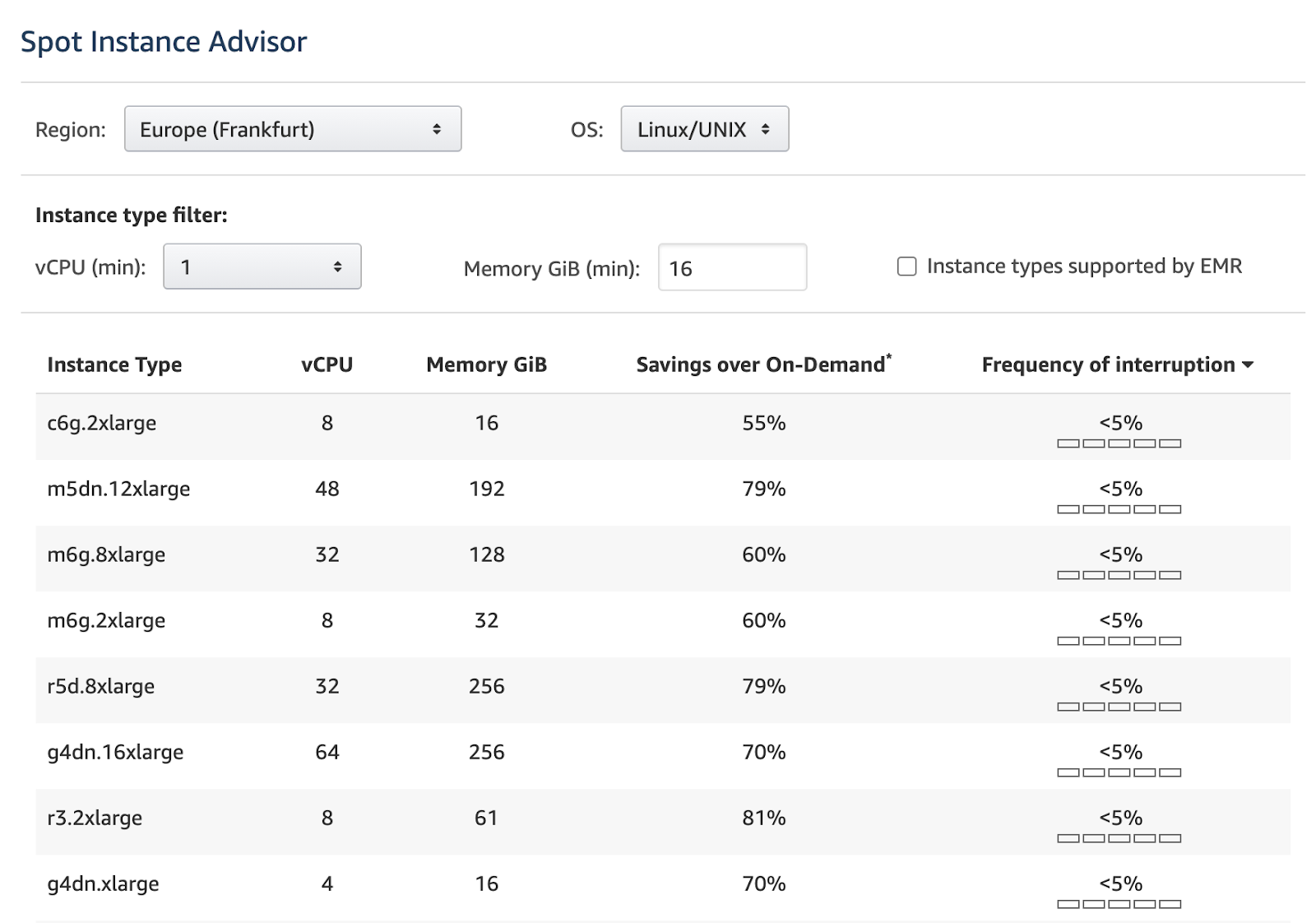
- Check an instance’s frequency of interruption (the rate at which this instance reclaimed capacity during the trailing month). You can check it in AWS Spot Instance Advisor:
- When bidding your price on a Spot Instance, set the value equal to On-Demand pricing. Otherwise, you risk that your workload is interrupted when the price increases.
- Set up groups called AWS Spot Fleets to boost your chances of snatching a Spot Instance. This is how you can request multiple instance types simultaneously. You’ll pay the maximum hourly price for the entire fleet, not a specific spot pool (i.e. instances of the same type and with the same OS, availability zone, and network).
8. Use automation to discover better-suited instances
A specialized instance selection algorithm like the one we’ve built at Cast AI cherry-picks the most cost-effective EC2 instance types and sizes that meet your application’s requirements.
PlayPlay, the video creation platform, used automation to move its Kubernetes workloads to more cost-efficient VMs. The screenshot below illustrates a rebalancing operation in which Cast AI replaced 13 nodes without impacting service availability, saving PlayPlay $2,912 monthly.

Conclusion
Selecting the right EC2 instance type is essential for balancing performance and cost efficiency. With over 700 options, it’s crucial to assess workload requirements, explore pricing models, and use tools like benchmarking and automation for optimal choices. You can reduce your AWS bill without compromising performance by making informed decisions and leveraging cost-saving strategies.
Take control of your cloud costs today! Connect your cluster to Cast AI and discover tailored recommendations to optimize your EC2 instance selection.
Kubernetes cost optimization
Monitor resource spending, automate resource allocation, and scale instantly with zero downtime.
FAQ
An EC2 instance is a virtual server located in Amazon’s Elastic Compute Cloud (EC2). Teams use it for running applications on the infrastructure of Amazon Web Services (AWS), a cloud computing platform. In its essence, EC2 is a service that helps businesses to run applications in the AWS computing environment. It offers a practically unlimited number of virtual machines.
EC2 instances differ from virtual machines in several areas.
A virtual machine is a simulated computer system running on virtualized hardware – on a computer or server. This means that virtual machines don’t use dedicated hardware but allotted portions of other systems. They don’t have direct access to the host system’s OS, files, or hardware.
An Elastic Compute Cloud (EC2) instance is a virtual server teams can use to run applications in AWS. They can easily configure the instance’s CPU, storage, memory, and networking resources, picking from different types of instances according to their requirements.
EC2 instances and virtual machines differ in how they handle different resources such as storage, CPU, and memory.
For example, when you establish a virtual machine, you need to define how much of your host’s resources it may utilize. When your VM isn’t in use, the resources are made accessible to other VMs and your host system. When you create an EC2 instance, you also choose which resources each instance can access – but even if the instance isn’t using these resources, they’re not available to other instances.
Amazon EC2 offers a variety of instance types that are tailored to certain use cases. Instance types provide different combinations of CPU, memory, storage, and networking capabilities that allow teams to pick the best resource mix for their applications. Each instance type has one or more instance sizes, which allows scaling resources according to the changing needs of your workloads.
In general, Amazon EC2 instance types are grouped as follows:
– General Purpose
– Compute Optimized
– Memory Optimized
– Storage Optimized
– Accelerated Computing
Before starting an EC2 instance, you must choose the right type and size (and other features) that match your needs. Most of the time, you’ll be selecting an instance type based on the following criteria:
– Availability Zone or Region
– Compute
– Memory
– Networking
– Pricing
– Storage
Once you open the Amazon EC2 console, you can check what instances you can get in Regions that are available to you (regardless of your location).
There are a few things you need to know to make the best choice in terms of cost vs. performance – we prepared a detailed guide to help you: How to choose the best VM type for the job and save on your cloud bill.
The number of EC2 instances you need will depend on the requirements of your application. One thing to keep in mind is that your account’s EC2 instance limitations should be set to more than 20 per region. Otherwise, you may find yourself unable to create additional instances when you need them most.
Amazon EC2 allows launching On-Demand Instances and pay as you go. This flexibility might make tracking your usage more challenging.
Fortunately, AWS offers an interactive usage report that can be accessed in the AWS Management Console: the EC2 Instance Usage Report. The report offers insights into instance usage and its patterns, giving you some helpful information to start optimizing your EC2 usage.
But the best way to track and optimize your usage is getting an intelligent cloud optimization solution that selects the best EC2 instances (including Spot Instances) and works to reduce your cloud bill by constantly looking for options matching your changing requirements.


